Getting Started
Initial Setup
Now that you've finished downloading Codex, you can complete the initial setup, create your account, and log in to Codex Editor to begin your translation journey.
Loading the Codex App
- Launch the Application: Open the Codex Editor application on your device.
- Accept Permissions: When prompted, accept any necessary permissions that the application requests.
- Restart if Needed: If the application doesn't load properly after accepting permissions, close and reopen it.
Account Registration Process
Creating an account with Codex Editor gives you access to all translation features, project management tools, and collaboration capabilities.
Step 1: Access the Registration Screen
- From the initial screen, select the option to create a new account.
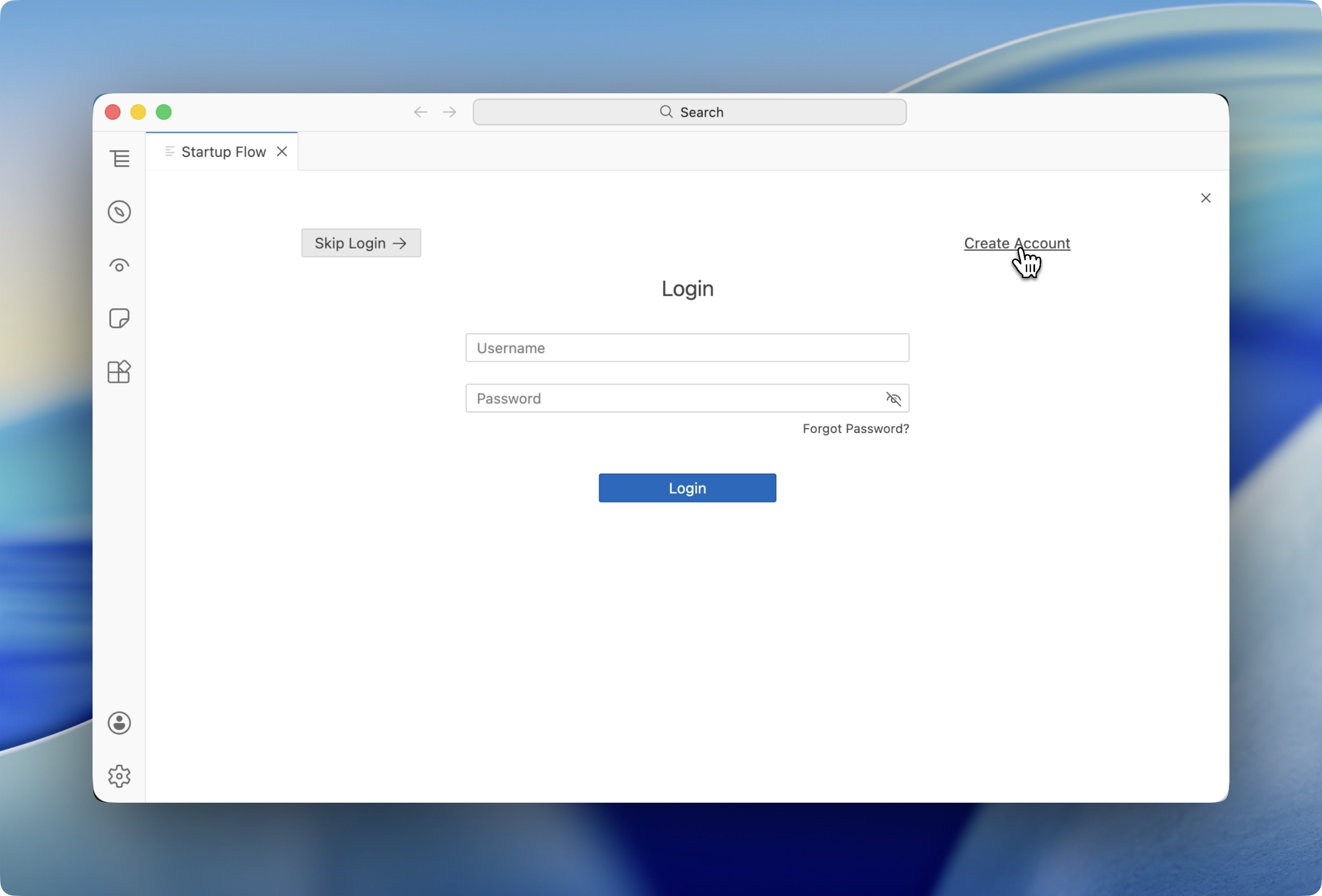
Step 2: Enter Your Information
We recommend writing down your login details somewhere safe
-
Username:
- Must be unique across all Codex Editor users
- Can contain letters, numbers, and underscores
- Usernames are case sensitive (CAP sensitive)
- Cannot be changed after account creation
-
Email Address:
Use a real email address or a reliable burner email
- Fake emails cannot be used for password resets
- You may receive important notifications at this address
-
Password:
- Minimum length of 15 characters required
- Must include at least one uppercase and one lowercase letter
- Numbers and symbols are not required
- Confirm your password by entering it again
- Click the eye icon to view the password if needed
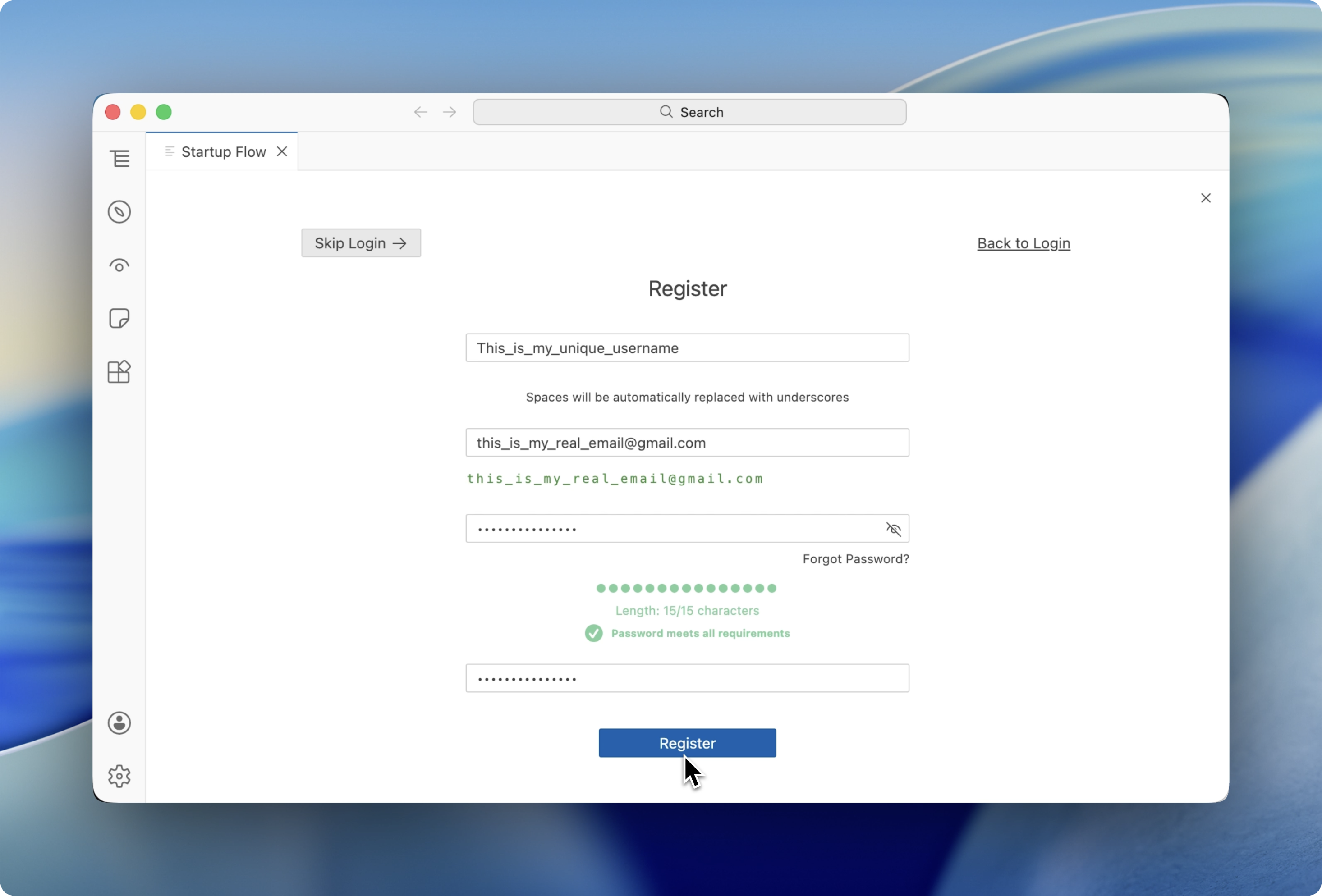
- Register
- Click Register to complete your initial setup
Automatic Login After Registration
- After creating your account, you will be logged in automatically
- You will remain logged in for up to one year
- This means you won't need to log in frequently
- Your session persists across application restarts
Manual Login
When you need to log in manually:
- Open Codex Editor: Launch the application
- Enter Credentials:
- Username (case sensitive) or email address
- Your account password
- Click Login: Submit your credentials to access your account
Account Security Best Practices
Password Guidelines
Passwords containing information from your username or email will be rejected
- Use a unique password that you don't use elsewhere
- Consider using a password manager
- Avoid personal information like birthdays or names
Email Considerations
- Use an email you check regularly
- Ensure the email account is secure
- Add Codex Editor to your email whitelist to prevent important messages from going to spam
Next Steps
Once you've successfully completed the initial setup and logged in:
Need Help?
If you encounter issues during setup:
- Complete the Troubleshooting guide support form first
- Use Reporting Bugs if you need to collect console logs
- Paste the generated template into Discord